10/18/2019

How to configure ESXi 6.5 vFRC using the command line

credit : https://qiita.com/tkprof/items/7a4d89aa861179872c6c

How to configure ESXi 6.5 vFRC using the command line

More than 1 year has passed since last update.
Just like to setup vFRC without vCenter Server ... here is how ...
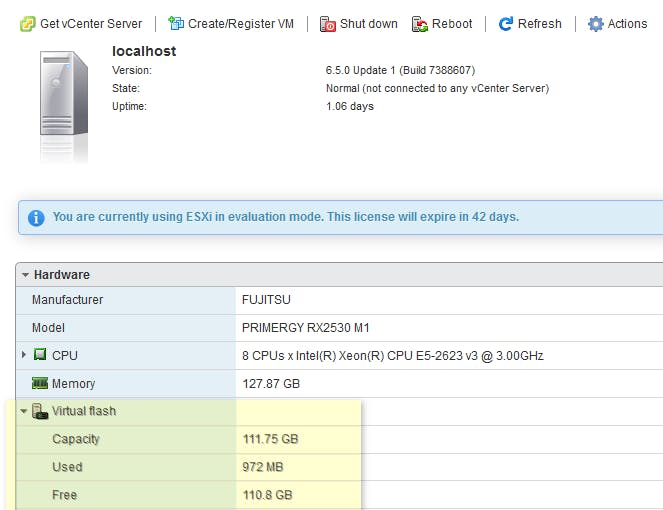
image.png

Prerequisite

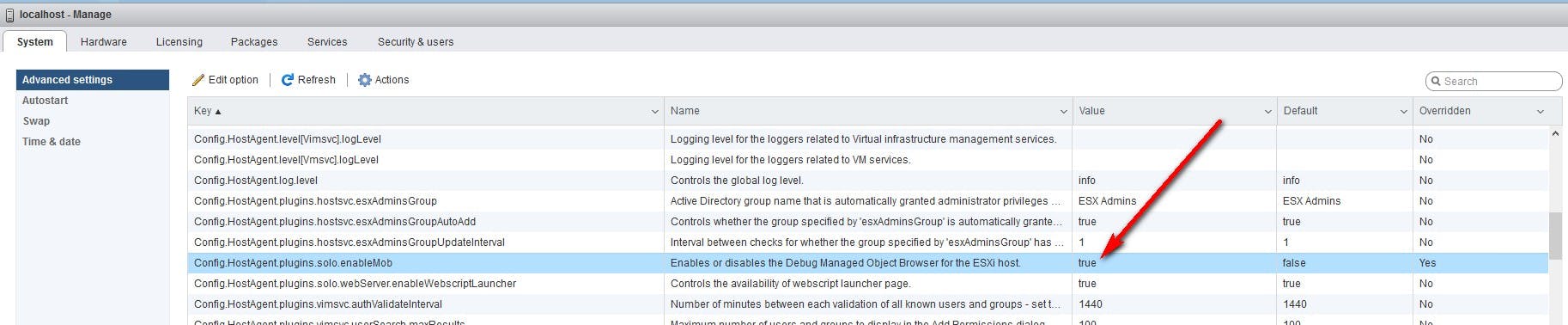
  • Enable MOB
2018-02-06_113050.jpg
To enable or disable the Managed Object Browser by using the vSphere Web Client, complete the following steps:
Browse to the host in the vSphere Web Client navigator.
On the Manage tab and click Settings.
Under System, select Advanced System Settings.
Select the Config.HostAgent.plugins.solo.enableMob option and click Edit to enable or disable the Managed Object Browser.

How to configure vFRC - vSphere Flash Read Cache

  • login ESXi shell
[root@localhost:~] esxcli storage vflash device list

Name                    Size  Is Local  Is Used in vflash  Eligibility                    
--------------------  ------  --------  -----------------  -------------------------------
naa.55cd2e404c6e42c4  114473      true              false  No, there are other filesystems
naa.55cd2e404c6e433f  114473      true              false  Yes, this is a blank disk.     
  • new vffs partition
    • calculate end sector = #cylinders x #heads x #sectors/track - 1
    • ↓ 234436544=14593x255x63-1
[root@localhost:~] partedUtil getptbl /vmfs/devices/disks/naa.55cd2e404c6e433f 

gpt
14593 255 63 234441648
[root@localhost:~] partedUtil setptbl /vmfs/devices/disks/naa.55cd2e404c6e433f "gpt" "1 2048 234436544 AA31E02A400F11DB9590000C2911D1B8 0"

gpt
0 0 0 0
1 2048 234436544 AA31E02A400F11DB9590000C2911D1B8 0
[root@localhost:~] vmkfstools -C vmfsl /vmfs/devices/disks/naa.55cd2e404c6e433f:1 -S vffs-$(hostname -s)

create fs deviceName:'/vmfs/devices/disks/naa.55cd2e404c6e433f:1', fsShortName:'vmfsl', fsName:'vffs-localhost'
deviceFullPath:/dev/disks/naa.55cd2e404c6e433f:1 deviceFile:naa.55cd2e404c6e433f:1
Device:'/vmfs/devices/disks/naa.55cd2e404c6e433f:1' is allowed to be formatted as VMFSL 
Checking if remote hosts are using this device as a valid file system. This may take a few seconds...
Scanning for VMFS-3/VMFS-5 host activity (512 bytes/HB, 2048 HBs).
Creating vmfsl file system on "naa.55cd2e404c6e433f:1" with blockSize 1048576 and volume label "vffs-localhost".
Successfully created new volume: 5a78fbf0-5178d6a4-70a8-901b0e6e4600
[root@localhost:~] vmkfstools -Ph /vmfs/volumes/vffs-localhost

VFFS-1.00 (Raw Major Version: 14) file system spanning 1 partitions.
File system label (if any): vffs-localhost
Mode: public
Capacity 111.8 GB, 110.8 GB available, file block size 1 MB, max supported file size 62.9 TB
UUID: 5a78fbf0-5178d6a4-70a8-901b0e6e4600
Partitions spanned (on "lvm"):
    naa.55cd2e404c6e433f:1
Is Native Snapshot Capable: NO
UUID :5a78fbf0-5178d6a4-70a8-901b0e6e4600 <-- alt=":exclamation:" class="emoji" height="20" img="" loading="lazy" memo="" nbsp="" src="https://cdn.qiita.com/emoji/twemoji/unicode/2757-fe0f.png" style="box-sizing: inherit; height: auto; margin: 0px; max-width: 100%;" title=":exclamation:" width="20">
  • refresh
[root@localhost:~] vim-cmd hostsvc/storage/refresh 

[root@localhost:~] esxcli storage vflash device list
Name                    Size  Is Local  Is Used in vflash  Eligibility                      
--------------------  ------  --------  -----------------  ---------------------------------
naa.55cd2e404c6e42c4  114473      true              false  No, there are other filesystems  
naa.55cd2e404c6e433f  114473      true               true  It has been configured for vflash
  • set HostVFlashManagerVFlashResourceConfigSpec 
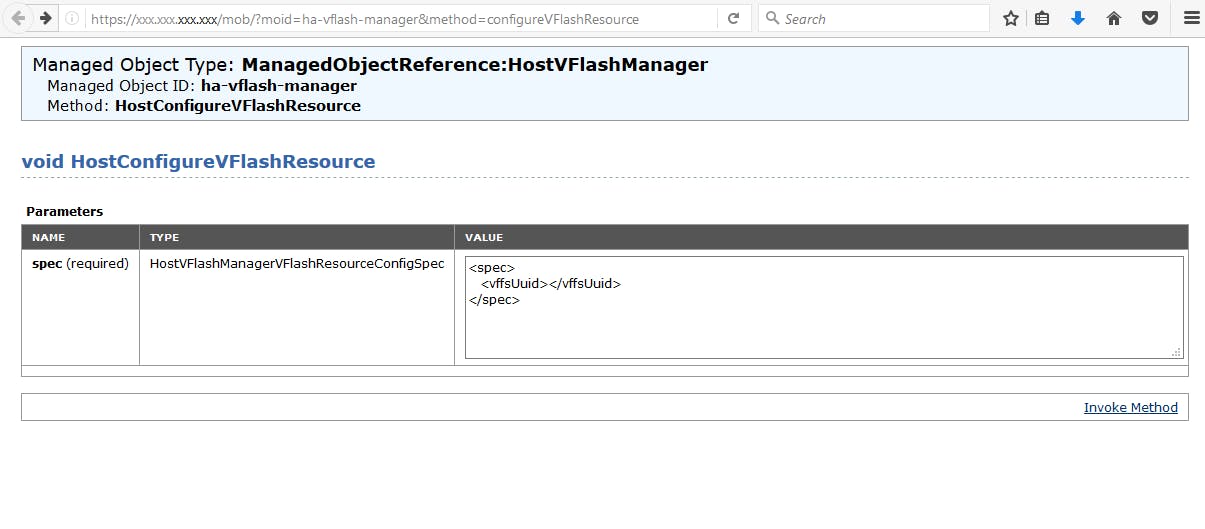
image.png
  • edit vffsUuid with UUID above and click Invoke Method
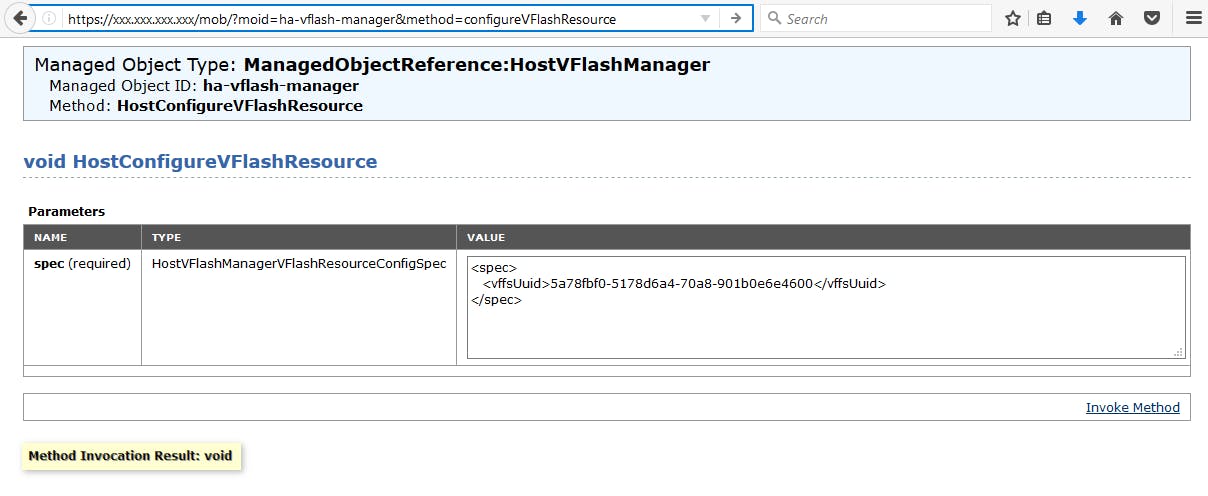
image.png
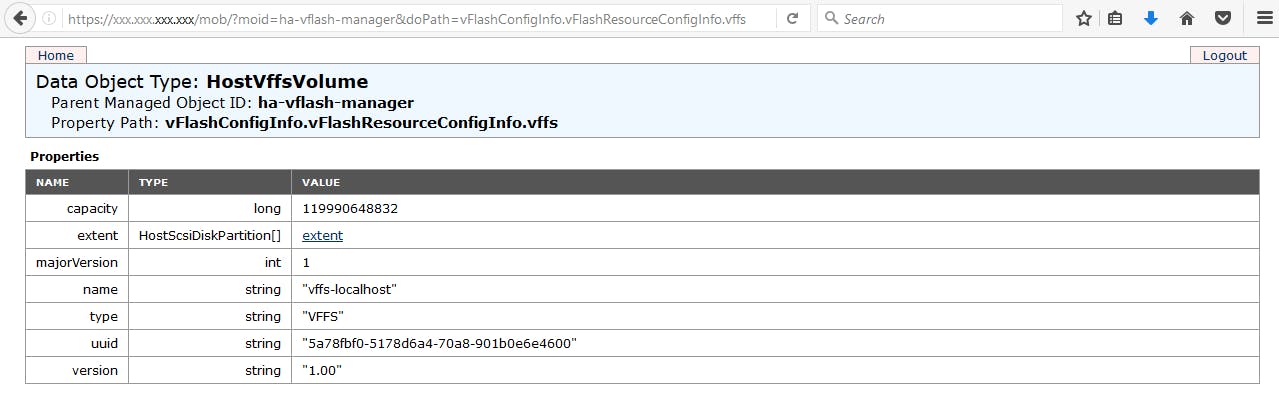
  • confirm VFlashConfig
image.png
Done :smile:

References

How to automate vFRC configurations using the command-line in ESXi - Posted on 11/20/2013 by William Lam
https://www.virtuallyghetto.com/2013/11/how-to-automate-configuration-of-vfrc.html
  1. download
  2. download
  3. convert py into Python 3.x version with 2to3
    • change password accordingly
$ 2to3 -w addVirtualFlashResource.py
addVirtualFlashResource.py
# Author: William Lam
# Website: www.virtuallyghetto.com
# Product: VMware vSphere + vSphere Flash Read Cache (vFRC)
# Description: Python script that calls vSphere MOB to add Virtual Flash Resource
# Reference: http://www.virtuallyghetto.com/2013/11/how-to-automate-configuration-of-vfrc.html

import sys,re,os,urllib.request,urllib.parse,urllib.error,urllib.request,urllib.error,urllib.parse,base64

if len(sys.argv) == 1:
    print("\n\tUsage: " + str(sys.argv[0]) + " [VFFS-UUID]\n")
    sys.exit(1)
else:
    vffsUuid = str(sys.argv[1])

# mob url
url = "https://localhost/mob/?moid=ha-vflash-manager&method=configureVFlashResource"

# mob login credentials
username = "root"
password = "vmware123"

# Create global variables
global passman,authhandler,opener,req,page,page_content,nonce,headers,cookie,params,e_params

# Code to build opener with HTTP Basic Authentication
passman = urllib.request.HTTPPasswordMgrWithDefaultRealm()
passman.add_password(None,url,username,password)
authhandler = urllib.request.HTTPBasicAuthHandler(passman)
opener = urllib.request.build_opener(authhandler)
urllib.request.install_opener(opener)

### Code to capture required page data and cookie required for post back to meet CSRF requirements  ###
try:
    req = urllib.request.Request(url)
    page = urllib.request.urlopen(req)
    page_content= page.read()
except IOError as e:
    opener.close()
    sys.exit(1)
else:
    print("Successfully connected to vSphere MOB")

# regex to get the vmware-session-nonce value from the hidden form entry
reg = re.compile('name="vmware-session-nonce" type="hidden" value="?([^\s^"]+)"')
nonce = reg.search(page_content).group(1)

# get the page headers to capture the cookie
headers = page.info()
cookie = headers.get("Set-Cookie")

# Code to create HostVFlashManagerVFlashResourceConfigSpec
xml = '' + vffsUuid + '
' try : params = {'vmware-session-nonce':nonce,'spec':xml} e_params = urllib.parse.urlencode(params) req = urllib.request.Request(url, e_params, headers={"Cookie":cookie}) page = urllib.request.urlopen(req).read() except IOError as e: opener.close() sys.exit(1) else: print("Successfully issued configureVFlashResource() with VFFS UUID " + vffsUuid + "\n")

8/08/2019

9 Useful touch command examples in Linux

https://www.linuxtechi.com/9-useful-touch-command-examples-linux/

7/22/2019

11 Best Tools to Access Remote Linux Desktop

https://www.tecmint.com/best-remote-linux-desktop-sharing-software/

6/28/2019

12 useful zypper command examples

https://kerneltalks.com/commands/12-useful-zypper-command-examples/

HOW TO MAKE GOOD USE OF ‘GREP’ COMMAND

http://www.linuxandubuntu.com/home/how-to-make-good-use-of-grep-command/

How to Monitor Linux Systems Performance with iostat command

https://www.linuxtechi.com/monitor-linux-systems-performance-iostat-command/

6/20/2019

tmux – A Powerful Terminal Multiplexer For Heavy Command-Line Linux User

https://www.2daygeek.com/tmux-a-powerful-terminal-multiplexer-emulator-for-linux/

6 Online Tools for Generating and Testing Cron Jobs for Linux

https://www.tecmint.com/online-cron-job-generator-and-tester-for-linux/

Graphics and music tools for game development

https://opensource.com/article/18/1/graphics-music-tools-game-dev

How To Resume Partially Transferred Files Over SSH Using Rsync

https://www.ostechnix.com/how-to-resume-partially-downloaded-or-transferred-files-using-rsync/

6/19/2019

Linux...Do It for the Children

https://www.linuxjournal.com/content/linuxdo-it-children

Use Glances to Monitor Remote Linux in Web Server Mode

https://www.tecmint.com/glances-monitor-remote-linux-in-web-server-mode/#

How Much Swap Should You Use in Linux?

https://itsfoss.com/swap-size/

2/20/2019

How to Block USB Storage Devices in Linux Servers

https://www.tecmint.com/block-usb-storage-devices-in-linux/#

2/19/2019

Top 20 OpenSSH Server Best Security Practices

https://www.cyberciti.biz/tips/linux-unix-bsd-openssh-server-best-practices.html

1/21/2019

How to use Fio (Flexible I/O Tester) to Measure Disk Performance in Linux

https://dotlayer.com/how-to-use-fio-to-measure-disk-performance-in-linux/

12/18/2018

How to Find a File in Linux with the Find Command

source : https://www.maketecheasier.com/find-a-file-in-linux/

The Linux find command is one of the most important and handy commands in Linux systems. It can, as the name suggests, find files on your Linux PC based on pretty much whatever conditions and variables you set. You can find files by permissions, users, groups, file type, date, size and other possible criteria using the find command.
The find command is available on most Linux distro by default, so you do not have to install a package for it.
In this tutorial we will show you how to find files on Linux using various common combinations of search expressions in the command line.
The most obvious way of searching for files is by name. To find a file by name in the current directory, run:
how-to-find-a-file-in-linux-photo
If you want to find a file by name that contains both capital and small letters, run:
find-iname-photo
If you want to find a file in the root directory, prefix your search with sudo which will give you all permissions required to do so, and also the ‘/’ symbol which tells Linux to search in the root directory. Finally, the -print expression displays the directories of your search results. If you were looking for Gzip, you’d type:
how-to-find-a-file-in-linux-gzip
If you want to find files under a specific directory like “/home,” run:
If you want to find files with the “.txt” extension under the “/home” directory, run:
To find files whose name is “test.txt” under multiple directories like “/home” and “/opt,” run:
To find hidden files in the “/home” directory, run:
To find a single file called “test.txt” and remove it, run:
To find all empty files under the “/opt” directory, run:
If you want to find all directories whose name is “testdir” under the “/home” directory, run:
To file all empty directories under “/home,” run:
The find command can be used to find files with a specific permission using the permoption.
To find all files whose permissions are “777” in the “/home” directory, run:
To find all the files without permission “777,” run:
To find all read only files, run:
To find all executable files, run:
To find all the sticky bit set files whose permissions are “553,” run:
To find all SUID set files, run:
To find all files whose permissions are “777” and change their permissions to “700,” run:
To find all the files under “/opt” which are modified twenty days earlier, run:
To find all the files under “/opt” which are accessed twenty days earlier, run:
To find all the files under “/opt” which are modified more than thirty days earlier and less than fiffy days after:
To find all the files under “/opt” which are changed in the last two hours, run:
To find all 10MB files under the “/home” directory, run:
To find all the files under the “/home” directory which are greater than 10MB and less than 50MB, run:
To find all “.mp4” files under the “/home” directory with more than 10MB and delete them using a single command, run:
And there it is – a wholesome list of ways to find whatever files you’re looking for on Linux. It may not be as simple as your rudimentary Windows search, but it’s much more detailed and specific. Are there any commands here that we missed? Let us know in the comments!
Image credit: Control by DepositPhotos